When you click on links to various merchants on this site and make a purchase, this can result in this site earning a commission. Affiliate programs and affiliations include, but are not limited to, the eBay Partner Network.
How to enable AUX IN audio/video episode is being edited now and should be out in a few weeks....
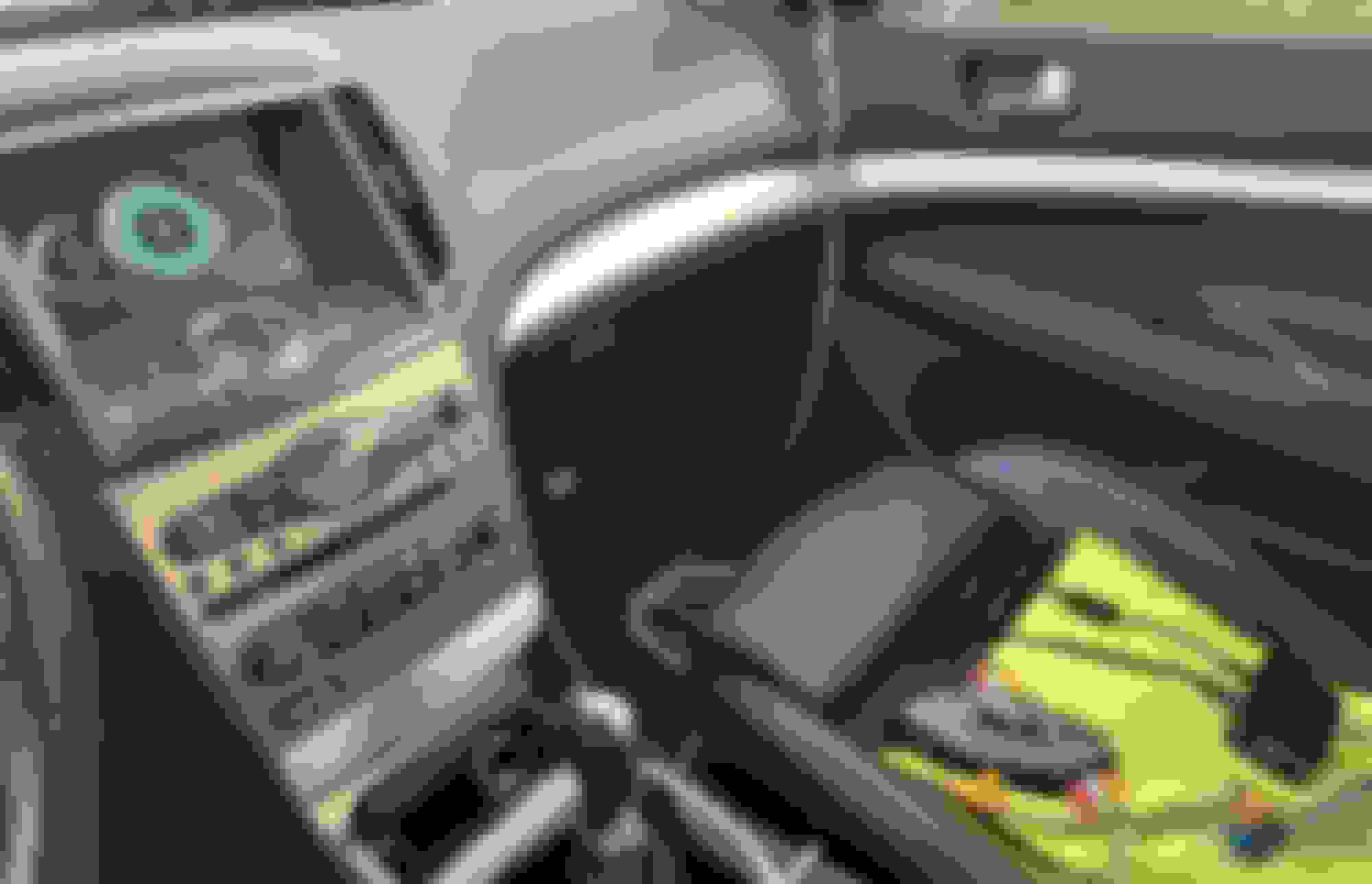
RealDash on the factory screen on my 2011 Infiniti G37!
From the factory, the G37 doesn’t have AUX IN audio/video, but the navigation unit can easily be reconfigured to enable it (DIY video now being editing)
Since RealDash can run on a Raspberry Pi, and that supports composite video (aka CVBS) it was a perfect match for my newly enabled AUX in video.
In the pic below, you can see the Raspberry Pi 4 connected to a $2 MCP2515 CAN bus module (via SPI) which is directly connected to the main CAN bus of the G37. This gives data update rates of 100 times per second for every data item. Very nice!!
The MCP2515 CAN bus module needs to be modified to work with the 3.3 volts of the Raspberry Pi. All you need to do, it cut a single trace and add one wire. No need for those expensive “CAN Hat” boards. DIY instructions/video can be created if there is enough interest.
From the CAN bus we get: (@ 100 Hz for each!!)
• Engine coolant temp
• Engine oil temp
• Throttle position
• Vehicle speed
I am now working on a simple circuit that uses an Arduino Nano to manage the proper power up and power down of the Raspberry Pi and it will be tested later this week.
Nice to see progress still being made! I didn't know about realdash.
I'm going to look into it on the Pi for my S5. Naturally, i can't leave anything alone so I already have aux video in on that.
However, by the time it gets to my door in Canada it will be around $70.
I have a $4, 5amp DC to DC converter, a few relays and an Arduino Nano in my parts bin, so I will use what I have.
Total parts cost should be under $15.
Also, I've added a front facing camera to the video switcher (box toward the front of the seat)
Now, I can switch between the Raspberry Pi and the front camera.
The quality is the same as the rear (not HD!) but it is enough to see how close the curb is
A DIY video will be out shortly after I figure out a good way to mount the front camera, without cutting the front grill... and that doesn't look like it is going to be easy.
If someone can get this to play Doom, thatd literally be amazing. Who needs to use the radio when you can play doom? Be even cooler to get it to use the dial to move and the fm/disc buttons to shoot.
Testing on my G37 has been going very well without a single issue. Soon I will be testing it on some local G37s to make sure it works on other versions (Auto trans, AWD, and ones with the Technology Package)
Hang in there!
If your 2010 to 2013 G37 has navigation, this video will show you how to enable the "Tire Pressure" menu, using an $8 USB A to A cable from Amazon.
As far as I know, there isn't any way to get this to work on 2009 and older navigation units, or any G37 without navigation.
I enabled the Tire Pressure menu on my G37 about 3 months ago. There hasn't been any problems and everything continues to work just like it did before.
I REALLY like being able to see the individual tire pressures when ever I want and I think you will like that too!
From what I have seen, the USB debug enablement does slow down the entire navigation system the longer you use it. BUT, all is good once you power off and then power on.
Be careful with some of these commands! There isn't always a "are you sure?" prompt and it just executes right away.
Some commands lock up the command console, but a restart gets it back to normal.
Do not use:
• dus > user data initialization, then may restart in different language with many errors showing on the console.
• dusa > user setting data initialization
Awesome progress being made!
Now that you guys have console access..... there are some commands in my OP that you can try (But be careful with some of them lol)
Awesome progress being made!
Now that you guys have console access..... there are some commands in my OP that you can try (But be careful with some of them lol)
Hey iCrap,
Thanks for the work you did with the navigation system!
It was a big help for me.
@MotorvateDIY you mentioned a video switcher box under a seat... I've looked in the FSM for my year (2013 USDM 6MT sedan) and don't see this. I'm wondering if A. I'm just not looking in the right page and B. if there is a vid switcher, can it mess with the camera signal phase? IE, the RGB signal I get is more like GRB (colors are wonky, red/green swapped). My own fault - I'm using a Murano camera.
Sorry for the side track - happy to take it to PM if you'd like.
@MotorvateDIY you mentioned a video switcher box under a seat... I've looked in the FSM for my year (2013 USDM 6MT sedan) and don't see this. I'm wondering if A. I'm just not looking in the right page and B. if there is a vid switcher, can it mess with the camera signal phase? IE, the RGB signal I get is more like GRB (colors are wonky, red/green swapped). My own fault - I'm using a Murano camera..
The G37 doesn't have a factory video switcher... I used a cheap video switcher (from Amazon) on the passenger seat to make it easy to change sources.
AH that makes more sense. I know non-nav and the pre-2010 are totally different from my 2013 nav (DAMN YOU GVIF!) so always wonder what I'm missing LOL.
2010+ System Configuration
This is the current configuration table, and most of it can be changed. By sending the command “sys 2” we can start to write vehicle configuration data, and that will look like this:
Here are some useful commands:
sys 2 9 1 Start to write table data
sys 2 9 1 9 0 opening animation set to infiniti
sys 2 9 1 0 0x5245 - Set vehicle body shape to GT-R
sys 2 9 1 1 0x5245 - set vehicle type to GT-R
sys 2 9 1 13 1 Turn on TPMS
sys 2 9 1 10 1 Turn on drive data (??)
sys 2 9 1 8 0 Set Infiniti for Premium/M3H
sys 2 9 1 9 1 Set opening animation to Nissan
sys 2 9 1 3 3 enable comfort menu
I can't find GT-R splash screen, tried different combinations with:
sys 2 9 1 8 [0-9]
sys 2 9 1 9 [0-9]
no luck. Do you know what config brings GT-R splashscreen ?
PARAM: 2 looks promising:
xanavi>xrcnf 2
FACTORY CONFIGURATION TABLE DATA
[ Vehicle Information ]
Vehicle-body shape = 0x45 (H/B 2Door)
Vehicle type = 0x5245 (D52E)
CAN generation = 1 (3 generations)
Destination = 3 (EUR)
Steering SW = 2 (06IT type)
Steering = 1 (RHD)
Air conditioner = 1 (06IT single temp with no operation)
Air conditioner diagnosis = 0 (OFF)
Background color = 1 (Nissan for Premium/M3H)
Opening animation = 2 (D52E type)
Drive information = 1 (ON)
Fuel information = 1 (ON)
Average fuel consumption = 0 (Bar graph)
TPMS information = 2 (D52E type)
but i still see only standard NISSAN splashscreen, something may be wrong as even when set up to Infinity splash, i still see standard 'Nissan' one.
Also hoping with above TPMS setting (TPMS information = 2 (D52E type)), i'll see GT-R specific screen, but it doesn't show in INFO. I know GT-R shows it regardless of speed. So i'm missing something here for sure.
Last edited by prodrive11; Feb 10, 2024 at 07:46 PM.
Reason: more info








 (But be careful with some of them lol)


